Installing T2 Linux on SGI Altix, with GPULast Updated: 21-Nov-2026 Categories: Altix, Linux Below are instructions for installing T2 Linux on an SGI Altix. Booting the InstallerBoot the DVD as you would any other disk on an Altix. If your DVD drive is marginal, I recommend writing
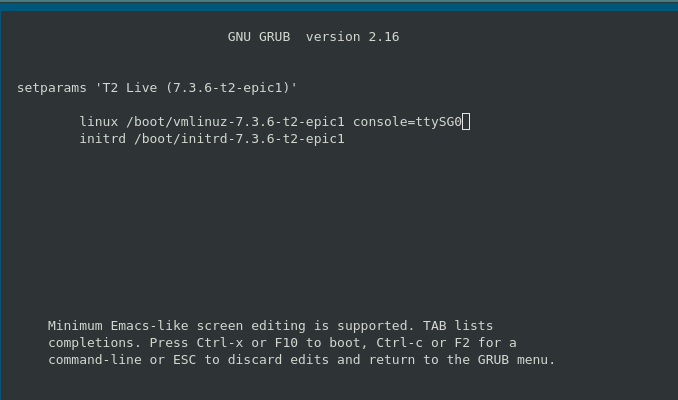
the ISO to a hard drive with I prefer to complete the installation via the L1 console, so I recommend editing the
Linux command line at the GRUB boot menu and adding:
GRUB should load and boot T2 Live. The boot will take a while... Be patient. It will likely get stuck at some points when starting services. If you have a Prism or an Altix with a PCI-E graphics card, you should end up at the KDE desktop. If after booting you don't have a GUI, you will need to reboot and add the following option to the kernel command line in GRUB:
InstallationIf GUI: Open the T2 installer on the desktop. The password is In stone:
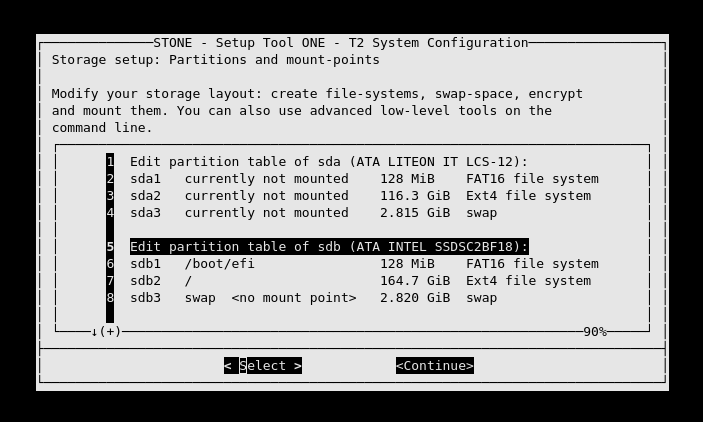
After this, you should see the partitions are mounted. Double check that both Picture of mounted partitions on /dev/sdb, my target disk for installation:
This will install all the packages. It will take a while, especially from a DVD
If you ever want the setup menu again, just run Using T2
for example: Package list is here: https://t2linux.com/packages/
|
-
 Home
-
 Blog
-
 Software
- About me
 Computers
- Silicon Graphics
- Altix Knowledge Base
- Altix 350
- Altix 3700
- Indigo2
- Indy
- Octane
- Sun Microsystems
- SPARCstation IPX
- SPARCstation 5
- Ultra 1
- Ultra 10
- HP
- 715/100
- C8000
- rp3440
- rx2660
- Digital
- PDP 11/34a
- VAXstation 3100
- Alphaserver 1000
- VT240
- IBM
- RS/6000 Model 43p
- Power 740
- NeXT
 Projects
- Z80 Computer
- Nixie Tubes/VFD
- Nixie Tube Clock
- Nixie Weather Clock
- INS-1 Nixie Tube Matrix
- IV17 VFD Board
- Soyuz 744H Clock
GPU SetupSee this post for tested GPUs and PCI-e bridges. The GPU MUST be installed in the top PCI slot. There must not be any card installed in the slot directly below it. (Meaning it must be the only card on the PCI bus. There are 2 PCI Busses on an altix 350 PCI riser.)
For me it selected the wrong driver, and I had to manually change it. And launch X: This will load TWM. Confirm that you have 3D acceleration: You should see |
Known IssuesThe GPU driver sometimes crashes or locks up under very heavy load. |